What it builds
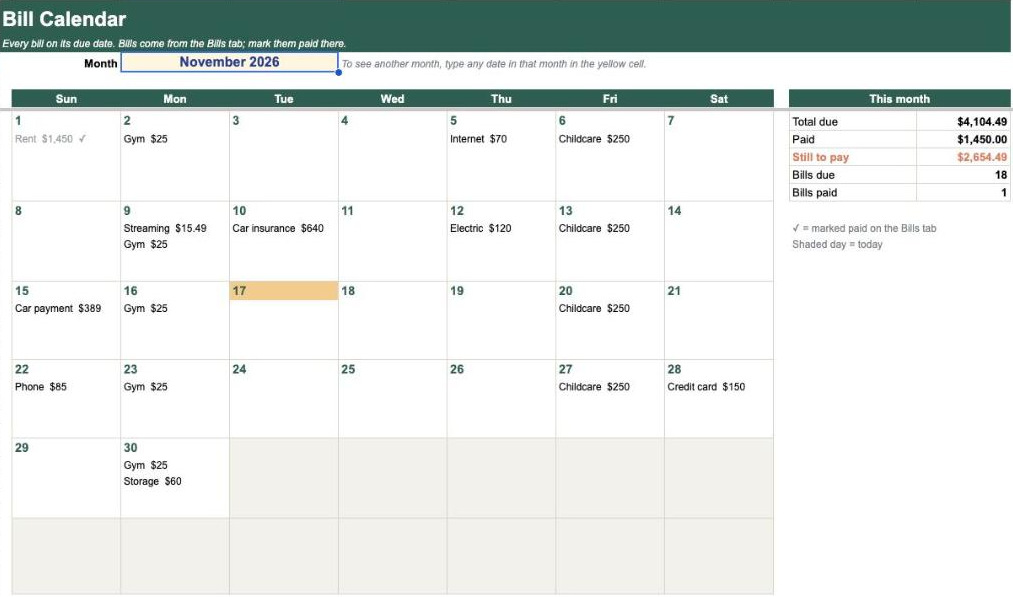
A bill calendar
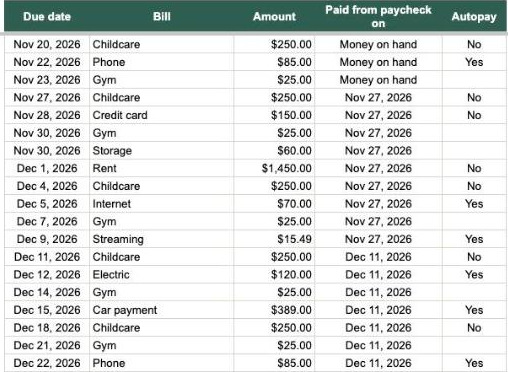
You list each bill once on a tab called Bills: its name, the amount, the day it is due and how often it repeats. The add-on builds a month calendar that shows every bill on its due date.
- See the month’s total, what you have paid and what is still to pay.
- Mark a bill as paid and it gets a tick on the calendar.
- A bill can repeat monthly, twice a month, weekly, every 2 weeks, every 3 months or yearly. It can also be due just once.
- To see another month, type any date in that month in the yellow cell.
A paycheck budget
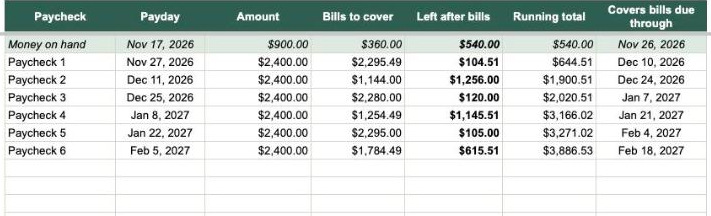
You say how often you are paid, when your next payday is and how much you take home. The add-on lists your paychecks for up to 12 months and matches every bill to a paycheck.
- Each bill is matched to the last payday on or before the day it is due. Bills due before your next payday come out of the money you have on hand.
- See what each paycheck has to cover and what is left after bills.
- A running total carries on from one paycheck to the next. Rows where it drops below zero are shaded red.
- It works whether you are paid weekly, every 2 weeks, twice a month or monthly.
Both tabs are made of ordinary spreadsheet formulas that you can see and change. They keep working even if you remove the add-on.
How it works
- Open the menu. Open a spreadsheet in Google Sheets™ on a computer. Click Extensions, then Bill Calendar & Paycheck Budget Planner, then Build bill calendar.
- Build the calendar. Pick the month and click the Build bill calendar button. The add-on adds a Bills tab and a Bill Calendar tab. It offers 10 sample bills so you can see how it works. Leave them out if you prefer, or delete them later.
- Type your bills. Put each bill on the Bills tab, in the yellow cells. The calendar fills in by itself.
- Build the budget. Choose Build paycheck budget from the same menu. Enter how often you are paid, your next payday and your take-home pay. The add-on adds a Paycheck Budget tab.
The add-on works in a web browser on a computer. It does not show in the phone and tablet apps.
What it can and cannot access
When you install the add-on, Google asks you to allow two things. Here is each one in Google’s words and in plain words.
| What Google’s permission screen says | What it means |
|---|---|
| “View and manage spreadsheets that this application has been installed in” | The add-on can read and change the spreadsheet you use it in. It needs this to read your Bills tab and to build the calendar and budget tabs. It does not open any of your other spreadsheets or files. |
| “Display and run third-party web content in prompts and sidebars inside Google applications” | The add-on can show its own side panel, pop-up boxes and Help window inside Google Sheets™. That is where you make your choices. These windows load nothing from other websites. |
It asks for nothing else. It does not ask for your name, your email address or your contacts.
Your data stays in your spreadsheet
- Everything the add-on makes is kept in the spreadsheet you use it in.
- It sends nothing to us or to anyone else. We cannot see your bills or your pay.
- It does not connect to your bank or to any other account. You type your bills yourself.
- It saves your set-up choices inside that spreadsheet, so the form is filled in next time. You can remove them with Forget saved choices in the add-on’s menu.
The full details are in the privacy policy. The rules for using the add-on are in the terms of use.
Bill Calendar & Paycheck Budget Planner’s use of information received from Google APIs will adhere to Google API Services User Data Policy, including the Limited Use requirements.
Get help
Email dd16041206@gmail.com. The help and support page answers common questions, such as what to do if the side panel shows an error and how to remove the add-on.